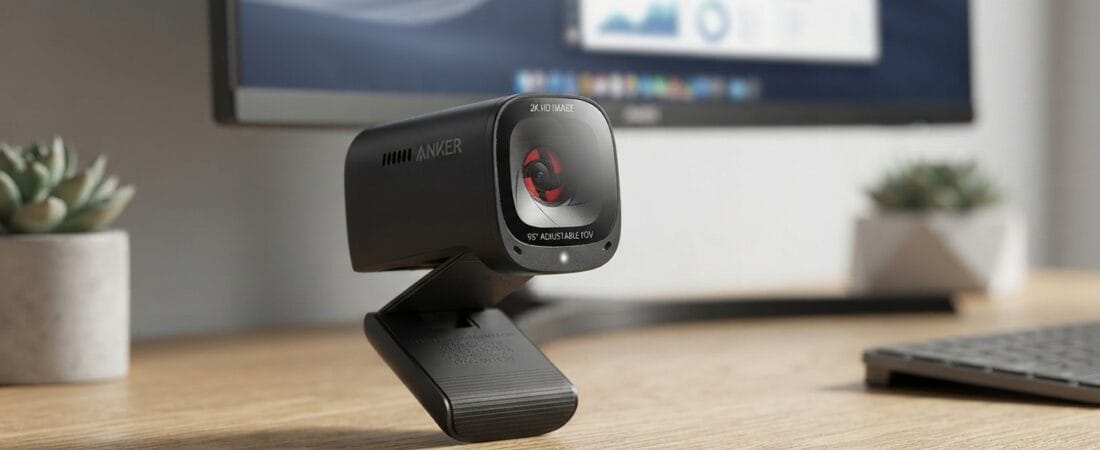
This pick is based on live Amazon listing data and an analysis of verified-purchase reviews — we have not physically tested this exact unit ourselves.
Why We Picked the Anker PowerConf C200
At $59.99, the Anker PowerConf C200 undercuts most 2K webcams while still shipping features usually reserved for pricier conference cameras: a built-in privacy shutter, three selectable fields of view (65°/78°/95°), dual noise-cancelling mics, and low-light correction that doesn’t require an external ring light. It carries a 4.4-star average across more than 9,300 ratings, with 72% of buyers rating it 5 stars — a strong signal for a $60 accessory that lives on top of a monitor for years. Reviewers repeatedly compare it favorably to webcams costing two to three times as much, including Logitech’s Brio 4K, citing faster autofocus and noticeably better low-light handling as the deciding factors.
What Owners Actually Say
The most common thread across five-star reviews is how little setup the camera requires — several buyers describe it as “plug and play,” with the AnkerWork app treated as optional rather than necessary. Multiple reviewers singled out the low-light performance specifically, saying it eliminated the washed-out or overly dark video they got from cheaper webcams without needing extra lighting in the room. The physical privacy shutter also comes up often as a small but appreciated touch — one reviewer noted the orange color makes it obvious at a glance whether the lens is covered. A side-by-side comparison from one reviewer who tested this against a Logitech Brio 4K found the Anker’s autofocus locked on faster and its low-light image held up better, despite costing roughly a third of the price.
One Thing to Check
Autofocus performance shows up as the most consistent complaint in mixed reviews. One verified buyer described “focus hunting” — the camera re-searching for focus whenever the subject moves, even under normal lighting with an uncluttered background. That same reviewer also reported the included USB-C cable became unreliable after about a month of regular use, causing intermittent disconnects that were resolved by swapping in a different cable. If you plan to move around a lot during calls or expect to leave the camera running for long unattended stretches, factor in that the stock cable may not be its most durable component.
Pros and Cons
| Pros | Cons |
|---|---|
| Strong low-light correction without extra lighting | Autofocus can “hunt” when the subject moves |
| Three adjustable fields of view (65°/78°/95°) | Included USB-C cable reported as failure-prone by some buyers after ~1 month |
| Built-in physical privacy shutter with clear on/off indicator | AnkerWork software login screen has a reported refresh bug |
| Dual mics with directional or omnidirectional pickup | No true close-up/macro mode |
| Genuine plug-and-play setup on Windows and Mac | 2K sensor, not 4K, at this price tier |
FAQ
Does it work without installing any software? Yes — multiple reviewers confirm it functions as a standard USB webcam in Zoom, Teams, and Google Meet with zero driver installation. The AnkerWork app is only needed if you want to change field of view, resolution, or microphone pickup pattern.
Is the microphone good enough to skip a separate mic? Reviewer feedback is mixed — several praised the dual-mic pickup as “loud, clear and good quality” in Zoom calls, but at least one long-term user still preferred a dedicated microphone and disabled the built-in mic entirely. For casual meetings it appears sufficient; for anything mission-critical, a standalone mic is still the safer bet.
Can it be mounted on a tripod instead of a monitor? Yes — one reviewer specifically tested both mounting styles and found the tripod mount worked as expected, while also being pleasantly surprised by how stable the monitor clip mount was.
For Specific Needs
“I need a webcam that mounts securely on my monitor, not just a tripod.” One reviewer who alternates between tripod and monitor-top use for a shared family computer specifically called out the monitor mount as “a pleasant surprise — very stable and secure,” noting it would work as a permanent set-and-forget mount if left in place.
“Will this work for streaming with a green screen / OBS setup?” Reviews suggest mixed results here — one buyer using it across meetings, classes, and streaming reported “some difficulty when trying to use a green screen,” though they attributed this more to their own lighting and OBS configuration than a hard limitation of the camera itself. Worth testing your specific chroma-key setup before committing to it as a dedicated streaming camera.
“Does it need Windows 10/11, or will it work on an older Mac?” The listed compatibility is broad: Windows 7 or later and macOS 10.11 or later, and reviewers confirm it worked immediately on macOS Monterey without additional drivers.
Methodology
This recommendation is based on the live Amazon listing (price, specs, and rating data as verified on the product page) plus a review of dozens of verified-purchase customer reviews spanning positive, mixed, and critical feedback. We have not physically tested this exact unit; all claims above are drawn directly from what is stated on the listing or reported by verified purchasers.
Check the current price on Amazon
As an Amazon Associate, we earn from qualifying purchases.
How We Built This Guide
Our process: this is a research-based pick, not a hands-on lab test. We aggregate verified-owner reviews, professional test data where available, and real discussion patterns from communities like Reddit, then flag every estimate as such in the guide above. We do not accept sponsored placements.
Last checked: July 29, 2026